What is Dopi
Dopi flips the deal you have with your distracting apps. You pick the apps that steal your time, Dopi locks them with Apple's Screen Time technology, and you buy access back with real activity: squats in front of the camera, a walk, a breathing session, a quick math game. Completed challenges pay minutes into your time bank. Nothing unlocks until you press play, and everything resets at midnight. Do something first. Scroll later.
1. The Today tab and your time bank
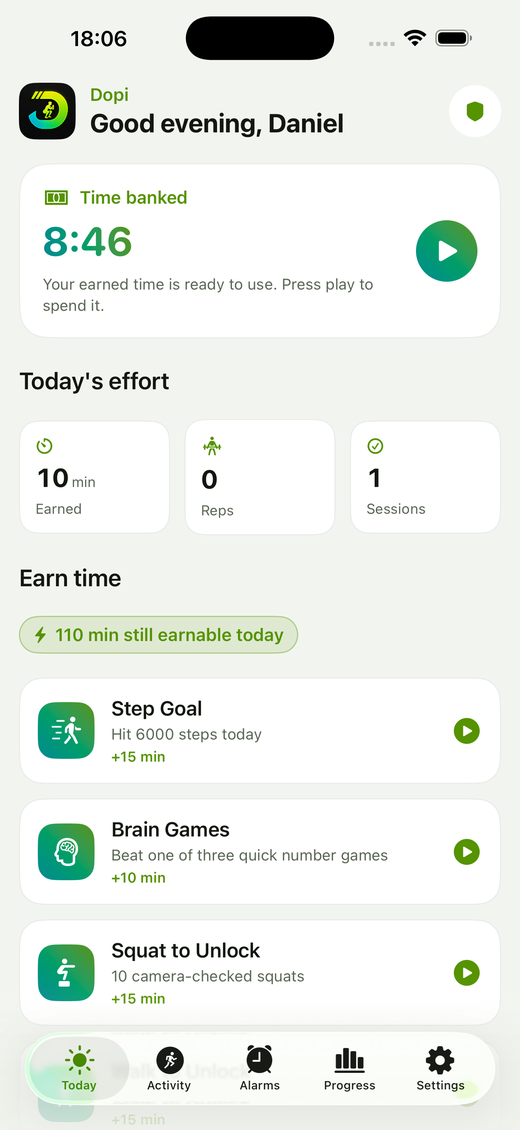
Today is home base. From top to bottom:
- Protection status. The card under the greeting shows whether your selected apps are currently protected. Tap it to change which apps are shielded.
- Time banked. Minutes you have earned but not yet spent. Press the play button to start spending: your shielded apps unlock and a countdown runs. Press pause any time to stop the clock and keep the rest for later.
- Today's effort. Minutes earned, camera-counted reps, and completed sessions today.
- Earn time. The challenge list. Each card shows what to do and what it pays. The lightning chip above it shows how much you can still earn today (there is a daily cap, so grinding one challenge all day is not a strategy).
Two rules worth knowing: earned time is banked, never auto-started, and the bank resets at local midnight. Spend what you earn.
2. Earning time: the challenges
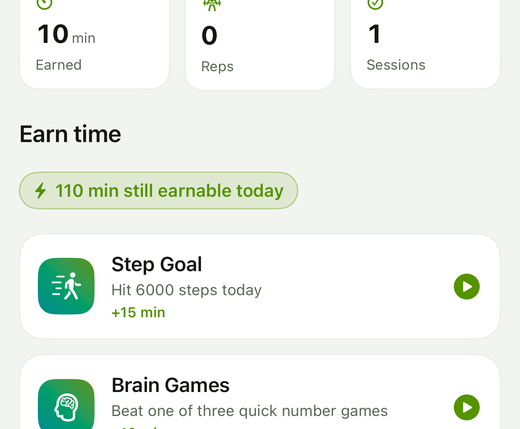
Tap the play button on any card to start. The main types:
- Camera exercises. Squat to Unlock, Plank to Unlock, Push-ups to Unlock, and Jumping Jacks use the front camera and on-device pose tracking to count real reps. A dotted guide shows where to stand: red until Dopi sees you, green while tracking. Prop the phone upright in portrait, step back until you fit the guide, and go. Video is processed live on your iPhone and never recorded or uploaded.
- Movement. Walk to Unlock counts live steps as you walk; Step Goal pays out once you hit your daily step target.
- Mind. Brain Games (three quick number games), Breathing (guided box breathing), Friction Journal and Grateful Gateway (short honest writing that never leaves your phone).
- Routine. Hydration check-ins, stretch routines, focus blocks, morning checklists, flashcards, and the Delay Ladder for pure willpower.
Challenges marked with a crown are part of Dopi Plus. Featured challenges open premium modules to everyone for a limited time.
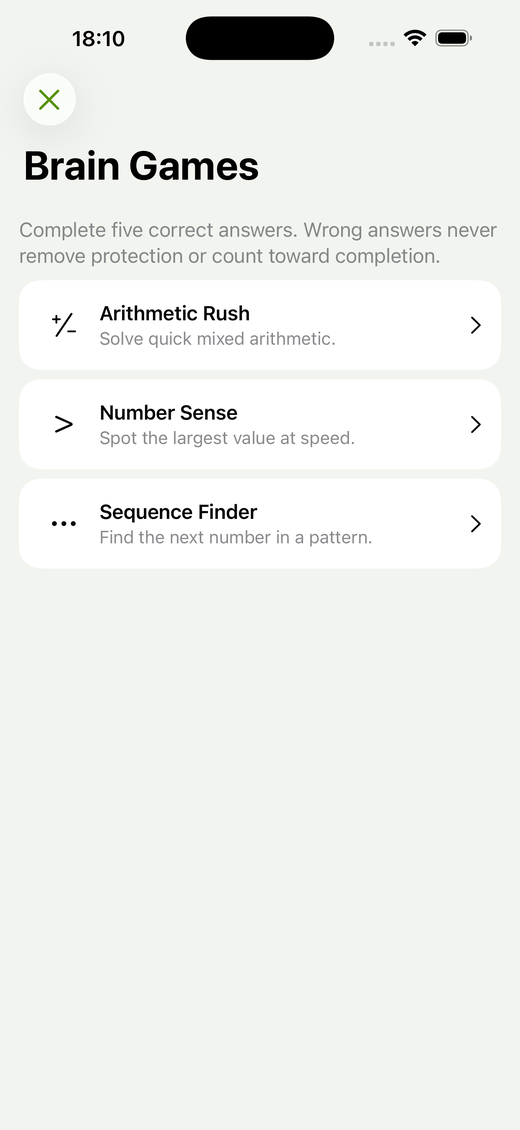
Every challenge validates actively. In Brain Games you need five correct answers, and wrong answers never count toward completion; two misses restart the round. In camera exercises a half-hearted rep does not count. Keeping the screen open is never enough, which is exactly the point: the friction is the feature.
Finish a challenge and the reward lands in your bank with a small celebration. Head back to Today and press play whenever you actually want to scroll.
3. The Activity tab: logging and Apple Health
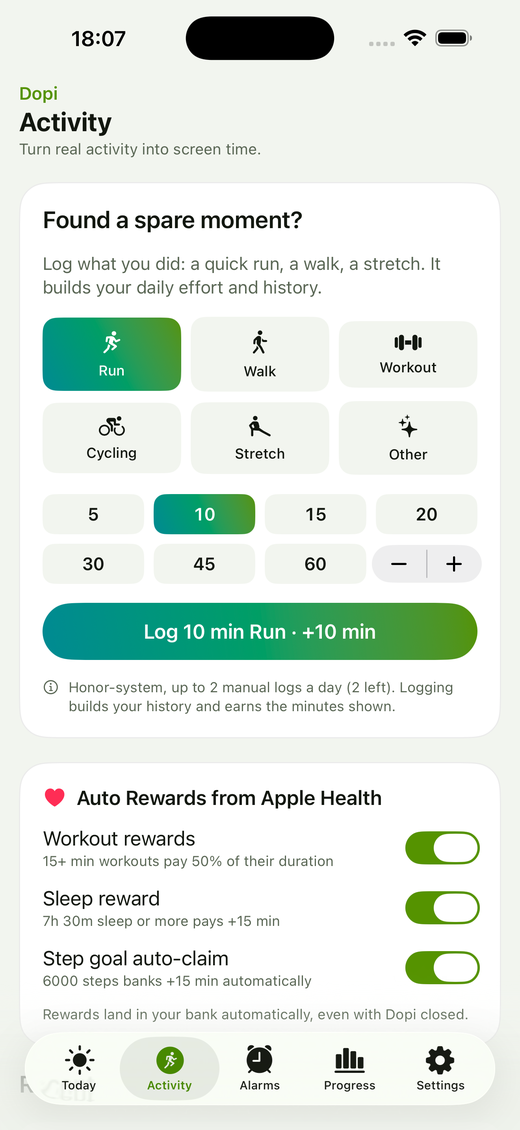
The Activity tab turns real-world exercise into screen time.
- Manual log. Did a run, walk, workout, ride, or stretch outside the app? Log the minutes and earn a configured share as screen time. Manual logging is honor-system, so it is limited to two entries per day.
- Auto Rewards from Apple Health (Plus). Connect Apple Health once and Dopi rewards you automatically: workouts from any app or watch pay a share of their duration, a good night of sleep pays a bonus, and your step goal auto-claims the moment you hit it. Only sensor-recorded data counts; manually entered Health data is ignored, so it cannot be gamed. Everything is read on-device and rewards land in your bank even with Dopi closed.
Each auto reward has its own toggle, so you can keep workouts on and sleep off, for example.
4. Alarms and reminders
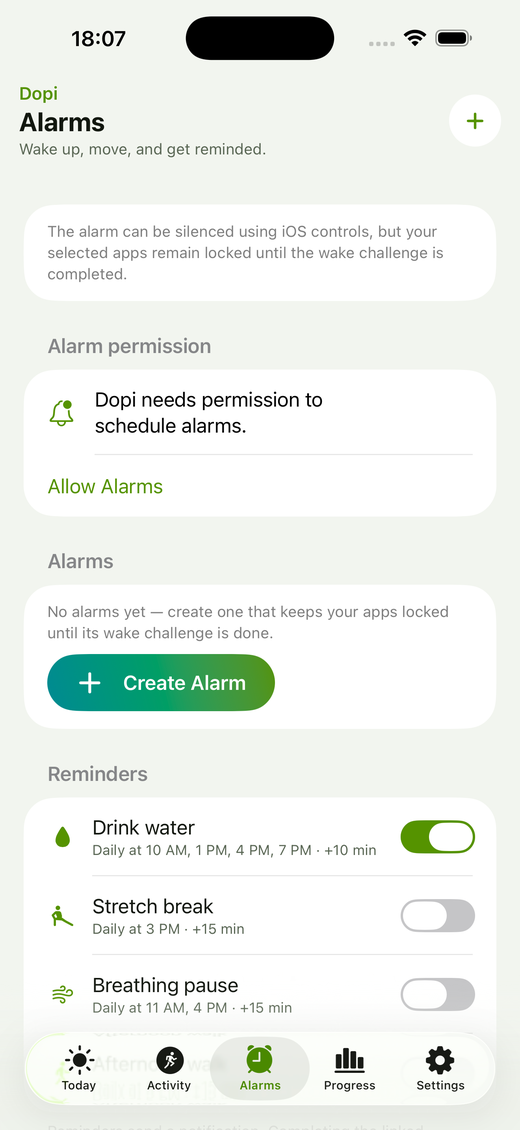
The Exercise Alarm is an alarm clock with consequences. Create one with Create Alarm: pick the time, the schedule (one time, daily, weekdays, or custom), and a wake challenge such as squats, push-ups, jumping jacks, or breathing.
When it rings, you can silence it with the normal iOS controls, but stopping it creates a challenge debt: your shielded apps stay locked until the wake challenge is done. The pending challenge appears on both the Alarms tab and the Today tab, where you can start it with one tap. There is also a Give Up button if you truly need out; you earn nothing, and your apps return to normal protection.
Below the alarms live Reminders: gentle nudges to drink water, stretch, breathe, or take an afternoon walk. Each one links straight to the challenge that banks minutes, so acting on a reminder pays. Reminders respect quiet hours and go silent whenever Dopi is disabled.
5. The Progress tab
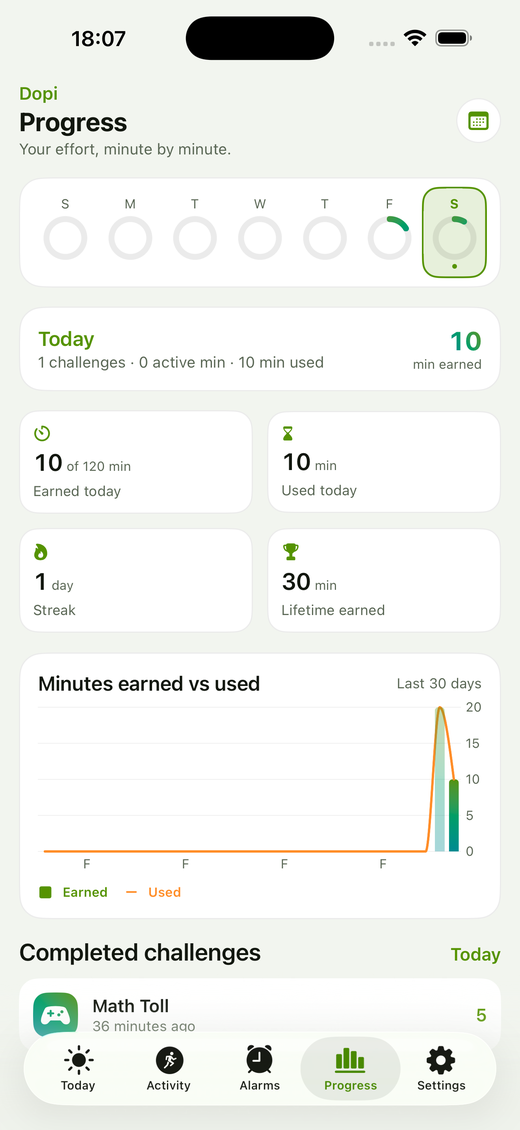
Progress is your effort, minute by minute.
- Week rings. Seven rings for the last seven days. Tap any day to scope the whole page to it, or tap the calendar icon to jump to an older date.
- Day summary. Challenges completed, minutes earned, and minutes actually used for the selected day, plus your streak and lifetime totals.
- Earned vs used chart. Thirty days of earning against spending, side by side. A widening gap means you are earning more than you scroll, which is the whole game.
- History. Every completed challenge with its reward, newest first.
6. Settings
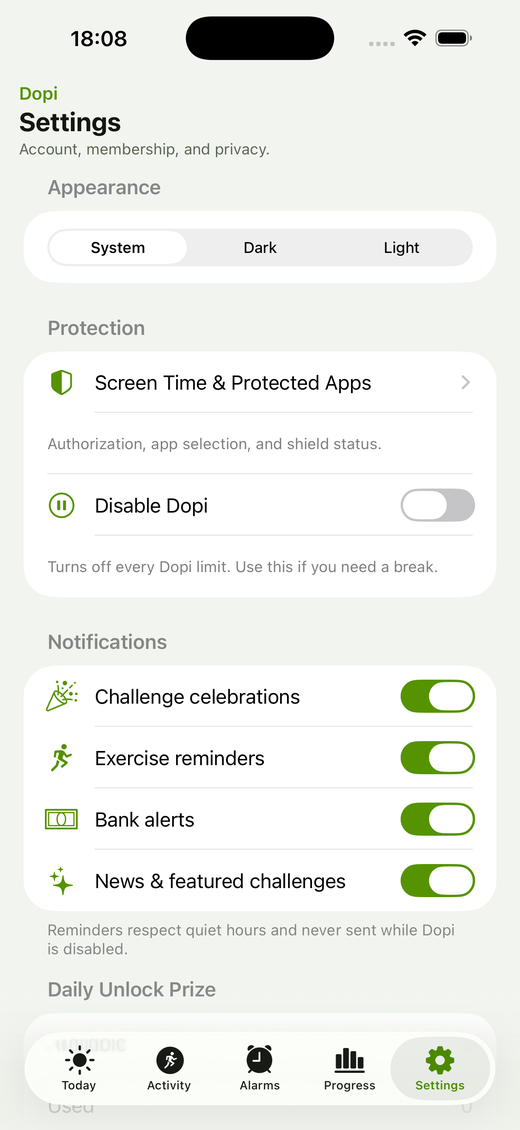
The important switches, top to bottom:
- Appearance. System, dark, or light.
- Screen Time & Protected Apps. Review authorization and change which apps are shielded.
- Disable Dopi. The honest off switch. Everything unlocks and every alarm, reminder, and notification goes quiet until you turn it back on. Use it for holidays, not for Tuesdays.
- Notifications. Separate toggles for challenge celebrations, exercise reminders, bank alerts, and news.
- Permissions. A live status list for Screen Time, camera, notifications, motion, and Apple Health, with a button to grant anything missing or jump to the right switch in iOS Settings.
- Daily Unlock Prize and Membership. Your plan, daily unlock balance, and restore purchases.
- Privacy. The analytics toggle, plus account sign-in and deletion.
7. Widgets and Apple Watch
Home screen widgets. Long-press your home screen, tap the plus button, and search for Dopi. The widget shows minutes earned today, banked minutes, and a live countdown while a timer runs, with play and pause right on the widget. Small and medium sizes are available.
Apple Watch. The companion app installs with Dopi (or from the Watch app on your iPhone). From your wrist you can watch the earned-time ring, pause and resume your timer, create exercise alarms with the crown, and complete breathing wake challenges without touching your phone. Today's stats (earned, done, reps) sit at the bottom of the watch screen.
Troubleshooting
- Apps did not lock after my time ran out? Dopi schedules a background re-lock, but give iOS a few seconds. Opening Dopi always reconciles instantly.
- The camera does not count my reps? Check the dotted guide: it turns green when Dopi sees you. More light helps, and for planks and push-ups get side-on with your head to knees in frame. Feet can be out of shot.
- A permission is missing? Settings, Permissions shows exactly what is granted and takes you to the right switch. iOS only shows each permission request once, so the switch lives in iOS Settings after that.
- The widget says "Open Dopi once to connect"? Launch the app one time after adding the widget; it connects automatically.